Google Calendar Chores: Complete Setup Guide
Add chores to Google Calendar, set up recurring cleaning schedules, and keep your whole family on track. Learn the manual method, its limitations, and how apps like ChoreSplit make it even easier with automatic sync.
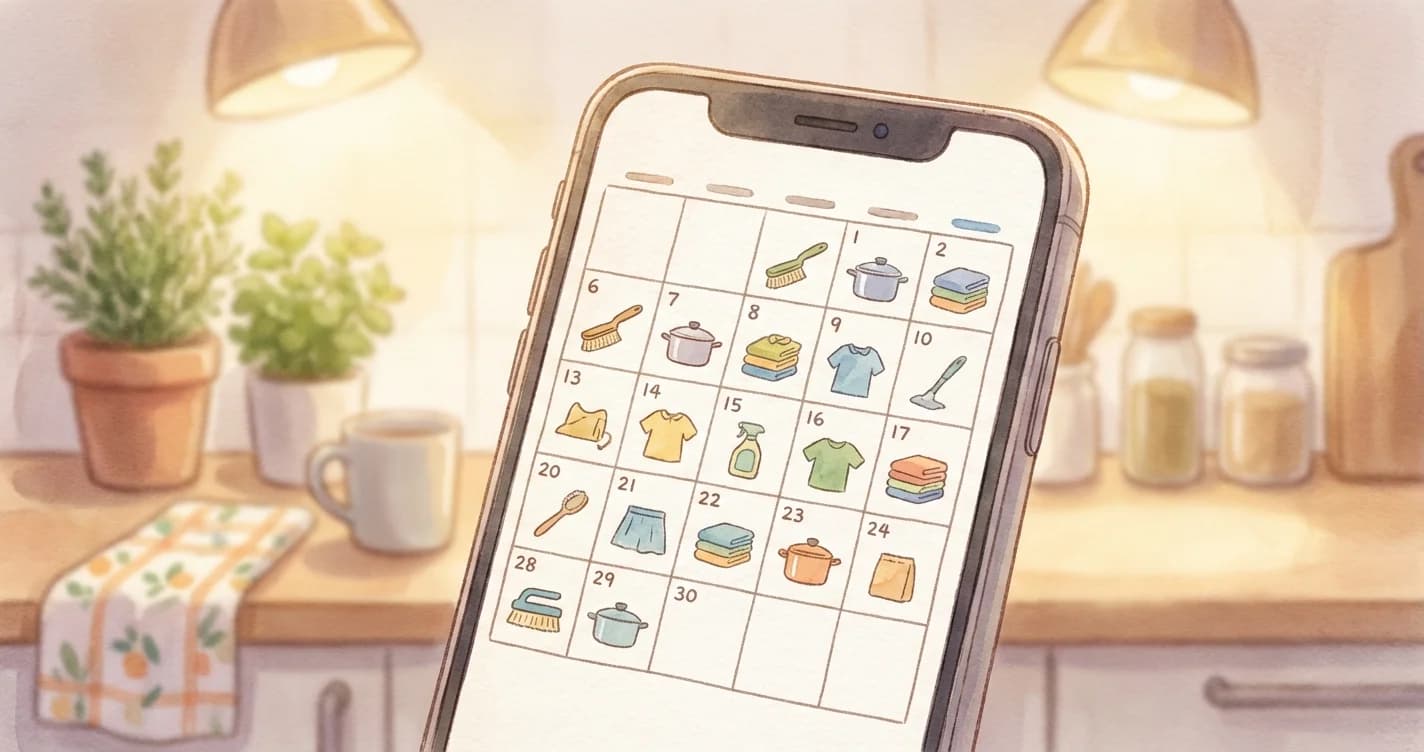
How Do You Add Chores to Google Calendar?
To add a chore to Google Calendar, open calendar.google.com, click Create, and choose either Task (a checkbox item that appears on the grid only if it has a date) or Event (a time block). Enter the chore name, click Does not repeatto pick Daily, Weekly, Monthly, Annually or Custom, add a notification, and save. Google Calendar has no per-person assignment field for chores, so most families put the assignee's name in the title — for example, "[EMMA] Clean bathroom."
The three limits worth knowing before you build a whole system on it, all documented by Google: shared tasks and subtasks cannot be set to repeat, a repeating event series is capped at 730 occurrences, and a recurring task that has been stopped cannot be set to repeat again.
For chores that also need per-person assignment, completion history, and rewards, ChoreSplit pushes each assigned chore onto that person's Google Calendar automatically (Plus plan).
Why Use Google Calendar for Chores?
Your calendar is already the command center for your schedule. Adding chores there means they get the same visibility as doctor appointments and soccer practice—not buried in yet another app you'll forget to check.
Never Forget a Task
Calendar reminders push notifications to your phone at exactly the right time.
Whole Family Visibility
Everyone sees who does what and when—no more "I forgot" excuses.
Recurring Made Easy
Set a task once, have it repeat daily, weekly, or monthly automatically.
Already On Your Phone
No new app to download—Google Calendar is already installed on most phones.
How Do You Set Up a Chore Schedule in Google Calendar Manually?
Setting up chores in Google Calendar takes six steps, and every chore goes through all six — there is no bulk import and no duplicate-with-changes shortcut. The full sequence, with the exact menu paths:
Create a dedicated chores calendar first
On a computer, open calendar.google.com, click Add other calendars ("+") next to "Other calendars," and choose "Create new calendar." Google notes that new calendars can only be created in a browser — the mobile apps cannot do it. Give it a distinct color so chores never blur into appointments.
Click "Create," then choose Task or Event
Task gives you a checkbox and a Google Tasks entry; Event gives you a time block on the grid. Tasks only appear on the calendar if you give them a date. Chores tied to a clock (trash out before Tuesday pickup) belong as Events; chores tied to a day belong as Tasks.
Enter the chore and put the assignee in the title
Google Calendar has no per-person assignment field, so the name goes in the text: "[EMMA] Clean bathroom" or "🧹 Jake — vacuum living room." Pick one convention and hold it across every chore.
Click "Does not repeat" to open the recurrence menu
Google documents the preset frequencies as Daily, Weekly, Monthly, or Annually, plus Custom. Under Custom, "Repeats every" takes day, week, month or year, and "Ends" offers Never, On a date, or After a set number of occurrences.
Add a notification, then click "Add notification" again if needed
Each notification is a pop-up or an email set some interval before the event. Google's Calendar API caps this at 5 reminders per event, each between 0 and 40,320 minutes (4 weeks) beforehand. Google also notes that when one event carries several notification times, Snooze appears only on the last one.
Repeat for every chore, one at a time
Google Calendar has no bulk import and no duplicate-with-changes shortcut, so a 20-chore household means running steps 2 through 5 twenty times.
Plan for the repetition: a household with 20 chores means running steps 2 through 5 twenty separate times, because Google Calendar offers no bulk import. Sources for the steps above: Create a new calendar, Create & manage tasks in Google Calendar, Manage repeating tasks, and Change Google Calendar notifications.
Should a Chore Be a Google Task or a Google Event?
Use a Google Event for chores tied to a clock and a Google Task for chores tied to a day. Events carry richer reminders and block real time; Tasks can be checked off but come with the harder recurrence restrictions. The differences that actually matter for a chore system:
| Google Task | Google Event | |
|---|---|---|
| Where it appears | On the calendar grid only if the task has a date, plus in the Tasks side panel | Always on the calendar grid, as a time block or an all-day banner |
| Can it be checked off? | Yes — a checkbox marks it complete | No — events have no completion state |
| Recurrence options | Repeats every day, week, month or year | Daily, Weekly, Monthly, or Annually, plus a Custom option ending Never, On a date, or After N occurrences |
| Reminder control | One notification at the due time; a task with no time notifies at 9 AM local | Up to 5 pop-up or email reminders per event, each set 0 to 40,320 minutes (4 weeks) in advance |
| Hard limits Google documents | Shared tasks and subtasks cannot repeat; recurring tasks cannot move between lists; a stopped series cannot be restarted | A repeating series is capped at 730 occurrences |
| Best chore fit | Day-bound chores — "clean your room by Saturday" | Clock-bound chores — trash out before 7 AM pickup, feed the dog at 5 |
Sourced from Google Calendar Help: Create & manage tasks, Manage repeating tasks, Create repeating events, and the Google Calendar API events reference for the reminder limits.
What Can't Google Calendar Do for Family Chores?
Google Calendar cannot assign a chore to one specific person, track who completed it, rotate it between family members, or verify that it was actually done. Four of the six limits below are stated in Google's own documentation rather than inferred from use:
Shared tasks cannot be set to repeat
Google documents this outright: "Shared tasks and subtasks can't be set to repeat." A task you hand to someone else is a one-off, permanently.
Impact: You get sharing or automation, never both. Every shared chore has to be re-created by hand each week.
A repeating task cannot be restarted or moved
Google documents two more hard stops: "If you stop a series of tasks from repeating, you can't set it to repeat again" and "Recurring tasks can't be moved to other task lists."
Impact: Pausing chores over a school break means rebuilding the whole series afterward, and you must get your list structure right the first time.
A repeating event stops after 730 occurrences
Google states that "Repeating events in Google Calendar have a limit of 730 occurrences." For a daily chore, that is about two years before the series simply runs out.
Impact: A daily chore set up today quietly stops appearing sometime in 2028, with no warning and no notification.
No true per-person assignment on a shared calendar
A shared calendar shows every member the identical event. Google's five sharing permission levels control who can see and edit a calendar — none of them assign an individual event to one person.
Impact: Everyone sees everything, which is how "I thought you were doing that" starts.
No completion history and no verification
Checking off a recurring task advances it to the next date and leaves no reviewable record. Anyone with edit access can check off anyone's chore.
Impact: You cannot see who did what last week, and "done" might mean "tapped the circle from the couch."
No rotation and no bulk creation
A recurring event repeats to the same people forever, and there is no import path — every chore is created one at a time in the UI.
Impact: Alternating dish duty between two kids means maintaining two offset series by hand, indefinitely.
How Does ChoreSplit's Google Calendar Sync Actually Work?
ChoreSplit connects to Google Calendar through Google's official API using two narrow permissions — calendar.events to create and update its own events, and read-only access to your calendar list so you can choose a target calendar. It never requests permission to read your other events. Each family member connects their own Google account and picks their own calendar; assigned chores are then written there as individual events on a rolling 14-day horizon, and updates arrive in real time through Google's push notifications rather than a periodic poll. Google Calendar sync is part of the paid Plus plan.
Each assignee's own calendar
Every family member connects their own Google account and picks which calendar receives chores. An assigned chore is written to that person's chosen calendar — not to a shared pile everyone has to filter.
Occurrences, not a 730-capped series
ChoreSplit writes each occurrence as its own event on a rolling 14-day horizon rather than one Google recurrence rule, so the series never runs out and per-day exceptions stay clean.
Timed or all-day, with your reminder
Chores set to "anytime" become all-day events; timed chores use your family's morning/afternoon/evening times with a default 60-minute block. Pop-up and email reminders default to 30 minutes before.
Real per-person assignment
Chores belong to a named family member — the thing Google Calendar's five sharing permission levels cannot express, since they govern calendars rather than individual events.
Changes flow both directions
Completing a chore in ChoreSplit removes its Google event. Deleting that event in Google marks the chore complete; restoring it un-completes it, and moving it reschedules that occurrence.
Points, streaks, and parent approval
Chores carry point values that show in the event title, feed streaks and a family leaderboard, and can require a parent sign-off or a photo before they count.
Side-by-Side Comparison
| Feature | Manual Google Calendar | ChoreSplit + Google Calendar |
|---|---|---|
| Creating chores | One at a time — no bulk import | Add once, syncs to the assignee |
| Reminders per item | Up to 5 on an event; one at due time on a task | Pop-up + email, default 30 min before |
| Recurrence ceiling | 730 occurrences per event series | Rolling 14-day window, no ceiling |
| Repeating a shared task | Not supported by Google | Supported |
| Assign to one person | ||
| Automatic rotation | ||
| Points & rewards | ||
| Completion history | Full tracking | |
| Leaderboards & streaks | ||
| Parent approval / photo proof | Optional per chore | |
| Price | Free | Plus plan |
How to Set Up ChoreSplit with Google Calendar
Add your family members
Create profiles for each family member. Kids can have their own logins.
Connect Google Calendar and pick a target calendar
Open Settings → Integrations → Google Calendar and authorize. Google asks only for permission to manage ChoreSplit's own events plus a read-only look at your calendar list, then you choose which calendar receives chores (your primary calendar by default).
Set your reminder preference
Choose pop-up, email, or both, and how far ahead — 5, 10, 15, 30, 60 or 120 minutes. The setting applies to every chore event ChoreSplit writes for you.
Create your chores and assign them
Add each chore with a point value, an assignee, and a repeat rule. ChoreSplit writes the next 14 days of occurrences onto the assignee's calendar and keeps the window rolling forward.
See the sync set up
A narrated walkthrough: ask ChoreSplit for a chore list for the day, and the four it writes land in Google Calendar as timed events with an owner and a point value on each.
Read the transcript
- 0:00You can put chores into Google Calendar by hand. That works right up until the week nobody makes next week's.
- 0:05So instead of writing this week's list, I asked ChoreSplit for one. Writing it out is the part that quietly stops happening.
- 0:11The chores it wrote are already in Google Calendar, on the day and at the hour they are meant to happen.
- 0:17Four of them, each carrying a time of day, an owner and a point value, and nobody typed any of it in twice.
- 0:24Calendar sync is on the Plus plan. Set it up at choresplit.com.
Frequently Asked Questions
Key Takeaways
- Use a Google Event for clock-bound chores and a Google Task for day-bound ones
- Google documents that shared tasks and subtasks cannot be set to repeat
- A repeating Google Calendar event series stops after 730 occurrences
- A stopped recurring task cannot be restarted, and cannot move between task lists
- An event supports up to 5 reminders, each up to 4 weeks in advance; a task gets one
- Google Calendar has no per-person assignment, completion history, or rotation
- ChoreSplit adds those and writes each assigned chore to that person's own calendar
Related Guides
Shared Family Calendar Setup
Google vs Apple vs family organizer apps
Apple Calendar Chores
Chore scheduling on iPhone and Mac
Alexa Chore Reminders
Voice-activated chore routines with Echo
Cleaning Schedule with Google Calendar
Room-by-room cleaning schedule templates
Family Calendar Chore Sync
Multi-person household coordination
Best Chore Apps with Calendar Sync
App comparison for 2025
Ready to Sync Chores to Google Calendar?
ChoreSplit gives you automatic Google Calendar sync plus gamification that keeps kids motivated. Set up once, never manually add chores again.
Free to start. No credit card required.